

Choose each display
Speed, times, G-forces, route, elevation and distance. Add the driver view, heart rate or a vehicle card if you want.
Video Studio New · Included in PRO
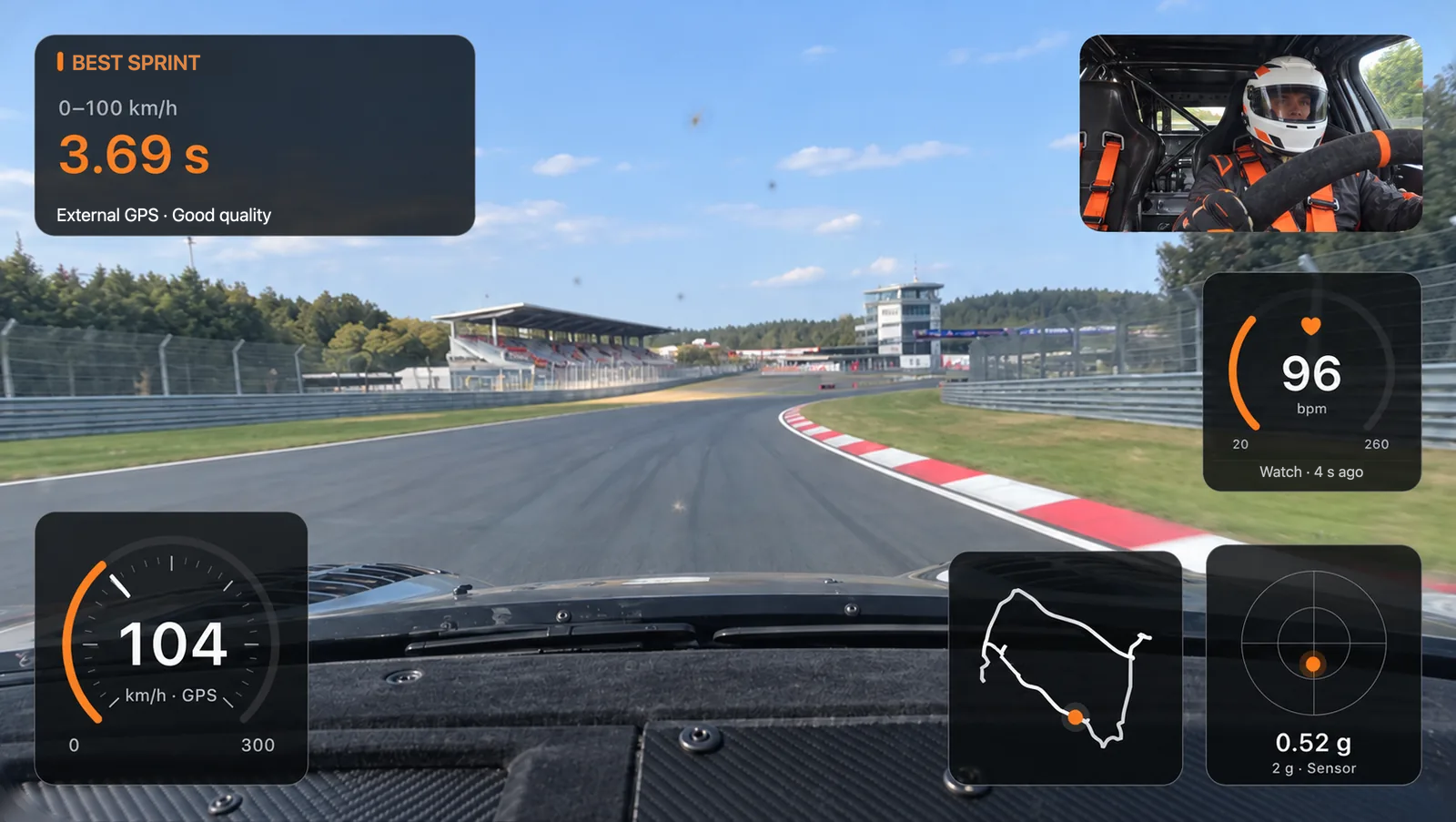
The numbers identify the displays in this look. Select one, then explore the additional displays below.
Show GPS speed as digits, a round speedometer or a bar. This example uses a round speedometer. Choose your own size, position, accent colour and background.
Sprint and distance best times have separate displays. They show saved results from the drive; other attempts are not recalculated afterwards. This example shows a best sprint.
Choose a G-circle, a short motion trail or two axes. The display uses suitable recorded iPhone motion data, with GPS as the fallback. The data source stays visible.
The route connects your position to the driving video, putting corners and acceleration into the context of your drive.
Record the road and driver simultaneously using the rear and front cameras. The optional driver camera requires a supported iPhone and compatible settings.
Optionally show recorded Apple Watch heart-rate values. The display is off by default and requires separate confirmation for every video export.
Three simple steps
Record your sprint, distance or lap session and bring it together with your actual recorded driving data. Choose a clip, design your displays and share your moment.
Before driving, choose “Set up video”. Select resolution, frame rate, optional sound and driver camera. “Start data + video” starts both together.
Open the drive from History in Video Studio. Choose the full drive, laps, a saved best-sprint clip or a custom time range. Adjust the displays, size, position and design.
Choose landscape or portrait and export an MP4 to save or share. Your original recordings and measurement data remain intact.
Your data. Your design.
A minimal look or every detail: you decide which driving data appears in your video.
These displays are not shown in the example above. Add them in Video Studio to suit your drive.
Lap time, sector times and lap summary.
Show the elevation profile of your drive.
Keep track of the distance you have travelled.
A bar or history curve, not pedal position.
Time difference at equal travelled distance, with an eligible reference lap.
Name, details, custom text or a photo from your Garage.
Combine, position and style each display. Many offer several designs and a compact layout. Availability depends on the measurement mode and recorded data; missing values are never invented.
Explore displays and designsSpeed, times, G-forces, route, elevation and distance. Add the driver view, heart rate or a vehicle card if you want.
Select a display, move it and adjust its size. Digital speed, a round speedometer or a bar, accent colours and backgrounds give the clip your own look.
Jump to laps, step through individual frames or choose a custom time range. Slow motion depends on your recording and settings.
Two perspectives. Your layout.
Landscape for the bigger picture. Portrait with room for your own look: driver view at the top, the road below and driving data in a separate area. Arrange the elements individually for each format.
The road fills the image. Driver view and data displays sit on top.
In portrait, driving data does not have to sit over the road image. In this example, speed, G-circle, route, best sprint and heart rate have their own area below.
You choose the position, size and design. The driver view stays optional.
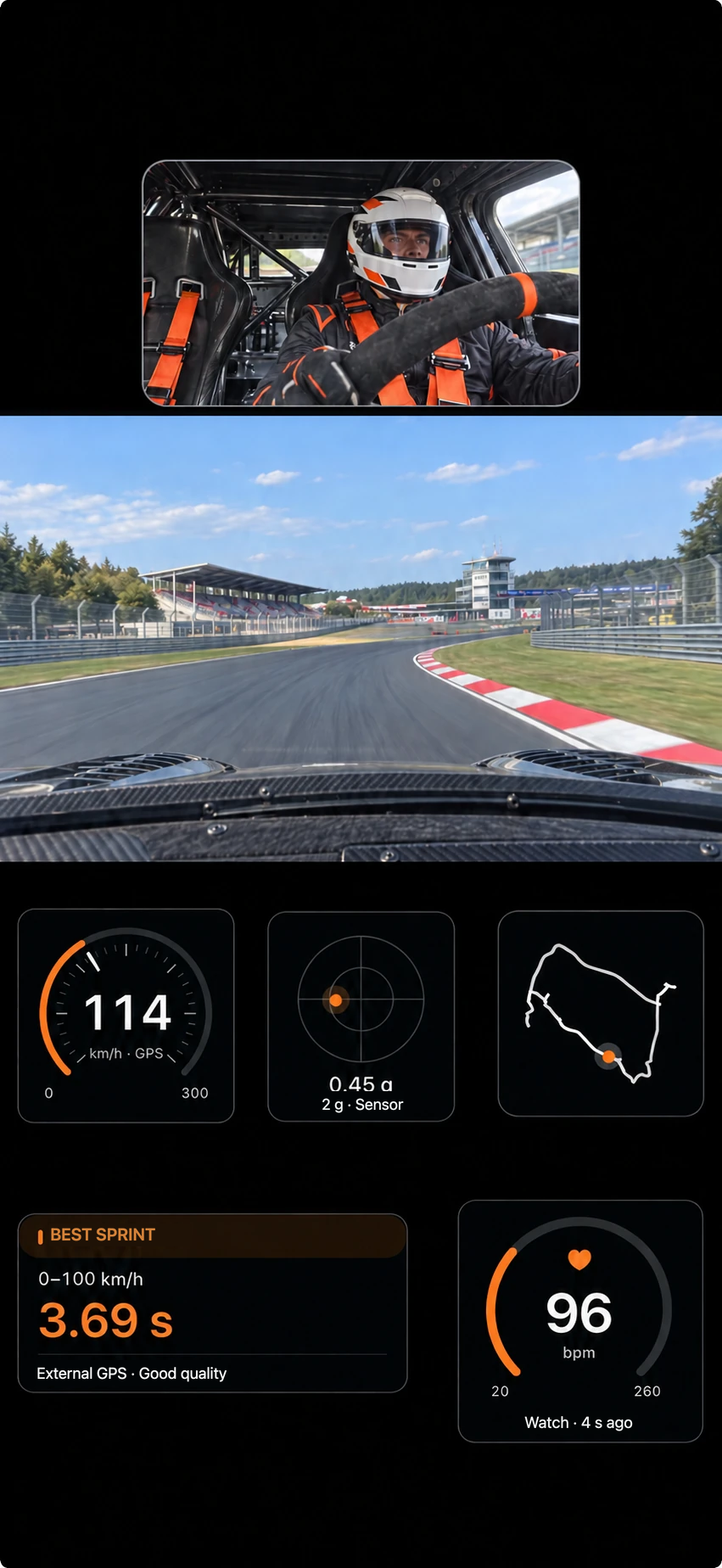
Perfect for social media: driver, road and driving data in your own arrangement.
Design examples with a fictional racing driver and circuit. Values are illustrative. Tap the images to enlarge. Choose your actual layout in the app.
Good to know
Video requires an unlocked iPhone with the app in the foreground. Locking or switching apps pauses the camera. Video can resume when you return to the same ongoing recording.
Recording up to 4K, higher frame rates, slow motion and the driver camera depend on your device and settings. Storage, heat and battery can limit recording.
Sprint, distance and lap measurements still work without a camera. Siri, Shortcuts and Apple Watch start data-only recordings without video.
Export creates a new file. Originals stay locally in Track4Facts. Use separate video backups to archive them; the regular app backup does not include videos.
Privacy
Recording, preview and export all happen on your device. There is no account and no upload to Track4Facts. Originals stay in the app, not in your photo library.
The camera only starts with “Start measurement + video”. You switch the driver camera and sound recording on separately. For “Save to Photos” the app may only add videos, not read your library.
The heart-rate display is off by default. If heart-rate values should appear in an exported video, you confirm this separately for every export.
Overlaid ride data becomes part of the video image. Check which people, number plates, places and conversations can be seen or heard. Note: deleting a video in Track4Facts does not remove copies you have already exported or shared to Photos, Files or other people.
Track4Facts PRO
Video Studio is part of PRO. One purchase, no subscription. Previous purchasers of the paid app keep the Full Version, including Video Studio.
